


- Posts: 26
- Thank you received: 1
×
Step-by-step instructions and tips for integrating ITVDesk with different surveillance systems.
Application Startup on System Boot (Screen Capture Applications)
6 months 3 weeks ago #28
by admin
A common question is whether the application can be run as a Windows Service in order to operate continuously in the background.
It is important to understand the following:
By design, a Windows Service cannot access the user desktop.
For security reasons, services run in an isolated environment (Session 0) and have no access to the interactive user session.
Because of this limitation, applications that use:
screen / desktop capture
GPU acceleration
graphical user interface (UI)
cannot work correctly when running as a Windows Service.
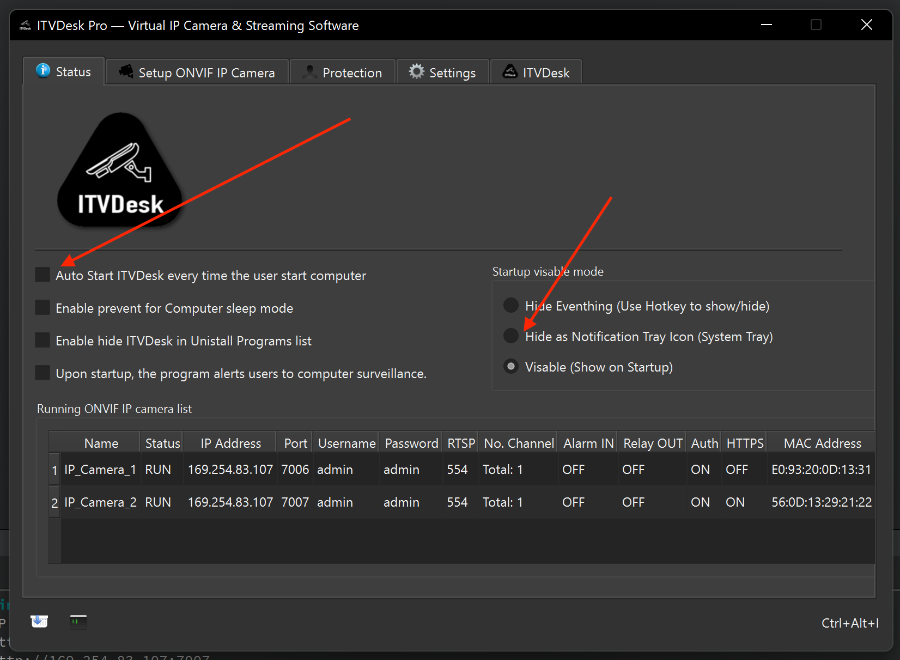
✅ Recommended approach: Auto-start in the user session
The correct and supported solution is to run the application in the user session using Windows Task Scheduler.
Benefits:
full access to the user desktop and GPU
screen capture works correctly
UI and system tray are available
stable and fully supported by Windows
? How to enable auto-start
Open Task Scheduler
Select Create Task
Set the trigger to At log on
Enable Run with highest privileges
Add an action Start a program and select the application executable
After this, the application will automatically start each time the user logs in.
ℹ Note
Running as a Windows Service is suitable only for headless applications that do not require desktop access or UI.
For screen capture applications, Task Scheduler is the correct and recommended solution.
It is important to understand the following:
By design, a Windows Service cannot access the user desktop.
For security reasons, services run in an isolated environment (Session 0) and have no access to the interactive user session.
Because of this limitation, applications that use:
screen / desktop capture
GPU acceleration
graphical user interface (UI)
cannot work correctly when running as a Windows Service.
✅ Recommended approach: Auto-start in the user session
The correct and supported solution is to run the application in the user session using Windows Task Scheduler.
Benefits:
full access to the user desktop and GPU
screen capture works correctly
UI and system tray are available
stable and fully supported by Windows
? How to enable auto-start
Open Task Scheduler
Select Create Task
Set the trigger to At log on
Enable Run with highest privileges
Add an action Start a program and select the application executable
After this, the application will automatically start each time the user logs in.
ℹ Note
Running as a Windows Service is suitable only for headless applications that do not require desktop access or UI.
For screen capture applications, Task Scheduler is the correct and recommended solution.
Please 登入 or Create an account to join the conversation.